Define Transparency
The Define Transparency feature can be used to specify which parts of a selection should appear transparent or hollow (allowing the picture underneath to show through). After selecting an area of a picture using one of the Selection Tools, click the Transparency button on the Option Panel to display the Define Transparency screen below:

One of three methods can be used to define the transparency of the selection:
Auto
The simplest method, Auto, lets the contents of the selection dictate whether it's transparent or not. With this mode, selections made from 32-bit images that already contain predefined transparent areas will display transparently. All other selections will display as opaque or solid.
Fixed
The Fixed method lets you select a single color to serve as transparent. Any pixels in the selection that contain this color will become transparent. You can use the slider on the right to adjust the color tolerance. A setting of zero will select only those pixels that exactly match the color you select. Higher settings will expand the selection to include pixels with similar colors that fall within the tolerance range.
Custom
The Custom method is similar to the Fixed method except that you can choose one or more transparent colors directly from the selection. Transparent areas can be selected using either a Color Picker  or Magic Wand
  style tool. The Color Picker tool will select all pixels that match the selected color, while the Magic Wand tool will select only adjacent pixels that match the color of the selected pixel. To broaden the scope of the colors selected you can increase the color tolerance. A setting of zero will select only those pixels that exactly match the color you select. Higher settings will expand the selection to include pixels with similar colors that fall within the tolerance range.
When you are satisfied with how the selection looks, click the Apply button to make the selected pixels transparent. If you make a mistake, click the undo button  to restore the selection to its previous state. Transparent areas will display with a light gray checkered background like this:
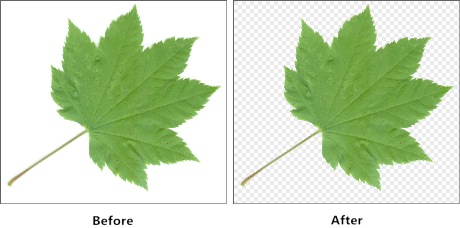
When you are finished, click the OK button to return to your picture.