Color Balance
You can use the Color Balance command to change the color intensity of the active picture or selected area. The entire picture can be modified by adjusting the levels of the palette's primary colors (red, cyan, green, magenta, blue and yellow). This is quite useful for making subtle adjustments and corrections to scanned photographs, artwork, etc.
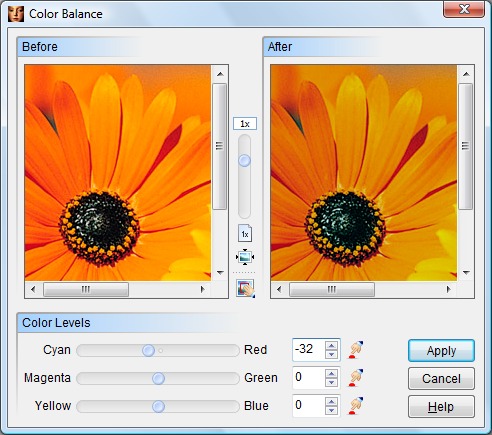
Drag the slider controls to change the individual color levels. For example, to increase amount of red in the picture, drag the Red slider to the right. To decrease the amount of red, drag the slider to the left. To leave a color level alone, position the slider on zero.
The Reset buttons  can be used to clear any adjustments made to one of the sliders. You also can enter a value with the keyboard by clicking on the edit control to the right of each slider.
The original picture and the effects of your changes are shown in the Before and After preview windows. Drag the vertical slider to adjust the magnification level of the preview images. Click the  button to shrink the preview images so that they fit completely within the preview window, or click the
  button to display the preview image actual size (1:1). If needed, you may move the preview to display a different portion of the picture using the scroll bars or by dragging its center with the mouse. The
  button can be used to quickly zero in on a specific area of the picture.
When you are satisfied with your settings, click the Apply button to modify your picture or selection.