Pattern Editor
The Fill Selector's Tile/Image Fill option is chosen and the Pattern Fill tab  activated, PixelNEO will display a list of simple monochrome fill patterns.
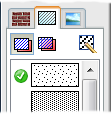
Clicking the  button on the palette will open the Pattern Editor which contains options for modifying, loading and saving custom patterns.
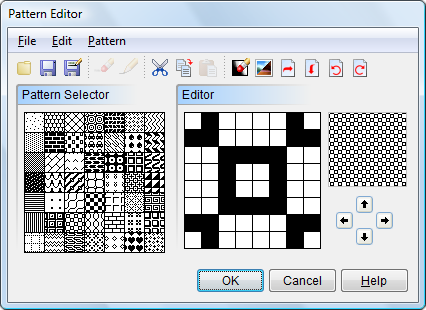
For more information about a specific item, click the image above.
On the left side of the screen is a palette containing all of the patterns currently loaded into PixelNEO. Select a pattern to edit by clicking one of the boxes in the palette. An enlarged version of the selected pattern will appear in the Drawing Area.
In the center of the screen, is the drawing area. To modify a pattern, first select one of the patterns from the palette, draw by clicking on individual squares in the drawing area. Clicking on a white pixel will change it to black and clicking on black pixel will change it to white.
 When drawing with a pattern, PixelNEO's Fill Selector determines how your pattern will be painted. When the Fill Selector's Solid Pattern button
  is active, the selected pattern's white areas will remain white while its black areas will be painted with the selected Fill Color. When the Fill Selector's Hollow Pattern button
  is active, the selected pattern's white areas will become transparent while its black areas will be painted with the selected Fill Color.
The Preview Box shows the effect your modifications have on the selected pattern when painted over a large area.
The File menu allows you to load a previously saved set of patterns or to save your edited patterns to a file for future use. The Edit menu contains selections which allow you to Undo an operation and to Cut, Copy and Paste the current pattern. Commands under the Pattern menu let you Clear the pattern being edited, Invert (change all black pixels to white and white pixels to black), Flip, Rotate and Reset either the current or all the patterns to their original state.
The Speed Bar contains buttons that provide single click access to often used Editor commands.
 The Shift Tool allows you to move the entire pattern one pixel horizontally or vertically in either direction.
The OK button in the lower-right corner saves your changes and returns you to the drawing screen. The Cancel button returns you to your drawing without saving your changes to the patterns.