Insert New Icon
Use the Insert New Icon command to add a new icon with a different size and/or color depth.
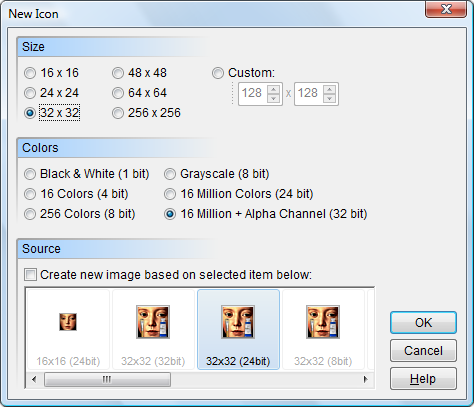
For more information about a specific item, click the image above.
Select one of the most common sizes or enter a custom size for your new icon. The maximum size of a Windows icons is 256x256 pixels.
An ICO file can contain one or more images in different sizes and color depths. When displaying an icon, Windows chooses the size and resolution it needs. If the ICO doesn't contain the exact size and color depth needed, Windows chooses the closest one and resizes it. For this reason it's usually a good idea when creating icons to include a range of sizes. For a Windows application icon, there is some debate about which sizes you should include, but typically it should include the following sizes (in pixels): 16x16, 32x32, 48x48, 128x128 and 256x256 (Windows Vista+).
Specify the number of colors (color depth) you would like to use with the new icon.
By default the new icon will be blank, but you can choose to start with a copy of an existing icon instead. To do this, enable the source check box and select an icon from the list. If necessary the copy of the source icon will be scaled to match the selected new icon size. This can be a quick way to create a multi-resolution icon. For best results, the source icon should be the same size or larger than the new icon.